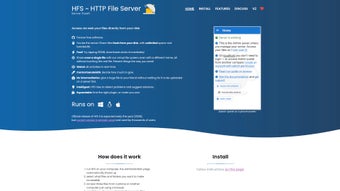

Download HFS – Free Secure File Sharing for Mac
Overview
HFS (HTTP File Server) is a versatile, free application built exclusively for macOS that turns any Mac into a personal web server for secure file sharing. In an era where cloud storage dominates, HFS offers a refreshing alternative: direct, peer‑to‑peer transfers that bypass third‑party servers, giving users full control over their data privacy. By simply dragging files or entire folders into the HFS interface, users generate unique, shareable links that can be sent via email, messenger, or any communication channel.
The generated URLs point straight to the Mac’s built‑in HTTP server, allowing recipients to download the content without the need for registration or additional software. Security is baked into the core of HFS—password protection, granular user permissions, and optional IP‑based restrictions keep unwanted eyes away from sensitive files. Beyond the basics, HFS includes a lightweight HTML templating engine, enabling users to customize the look and feel of the web interface to match personal branding or aesthetic preferences.
Real‑time monitoring tools provide insight into active connections, download statistics, and server health, making it easy to manage traffic and troubleshoot issues. Whether you need to share a single PDF with a colleague, distribute a large media library to friends, or host temporary download links for software releases, HFS delivers a reliable, user‑friendly solution that runs smoothly on modern Macs.
Key Features
- Instant Shareable Links: Drag‑and‑drop files to instantly create HTTP URLs that can be sent to anyone.
- Password & Permission Controls: Protect each shared item with a password and define read‑only or download‑only permissions.
- Customizable Web Interface: Use built‑in HTML templates or create your own to brand the server’s appearance.
- Real‑Time Monitoring Dashboard: View active connections, download counts, and bandwidth usage at a glance.
- IP Filtering & Access Logs: Restrict access to specific IP ranges and keep detailed logs for audit purposes.
- Lightweight & Low Resource Consumption: Runs efficiently on older Mac hardware without hogging CPU or RAM.
- Free & Open Source Core: No hidden fees, subscription models, or ad‑ware—just a pure, community‑driven tool.
- Automatic Port Forwarding Assistance: Guides users through router configuration to ensure external accessibility.
- Multi‑Language Support: Interface available in several languages, making it accessible worldwide.
- Secure HTTPS Option: Optional SSL/TLS support for encrypted transfers when needed.
Installation & Usage Guide
Getting HFS up and running on your Mac is straightforward, even for users with limited technical experience. Follow these steps to install and start sharing files within minutes:
- Download the Installer: Visit the official HFS website and click the Download for macOS button. The file is typically a compressed .dmg package.
- Mount the Disk Image: Double‑click the .dmg file to open it. Drag the HFS app icon into your
/Applicationsfolder. - Launch the Application: Open
HFS.appfrom the Applications folder. macOS may prompt you to confirm that you trust the developer; click Open to proceed. - Configure Basic Settings: Upon first launch, you’ll see a welcome wizard. Choose a default port (the default 8080 works for most cases) and enable the “Start server on login” option if you want the service to be always available.
- Add Files or Folders: Drag any file or folder from Finder onto the main HFS window. A new entry appears with a generated URL displayed underneath.
- Set Security Options: Right‑click an entry and select Properties. Here you can assign a password, limit download attempts, or restrict access to specific IP addresses.
- Customize the Interface (Optional): Navigate to Preferences → Appearance. Choose a built‑in HTML template or upload your own. Preview changes in real time before saving.
- Share the Link: Copy the generated URL and paste it into an email, chat, or any communication channel. Recipients can open the link in any web browser, authenticate (if required), and start downloading.
- Monitor Activity: The lower pane of the main window shows live connections, file transfer speeds, and a log of completed downloads. Use this to troubleshoot or simply keep an eye on usage.
- Shutdown or Restart: When you’re done, click the Stop Server button in the toolbar. You can also quit the application like any other macOS app.
The entire process from download to first successful transfer usually takes less than five minutes, making HFS an ideal solution for quick, ad‑hoc sharing as well as longer‑term hosting needs.
Compatibility, Pros & Cons
macOS 10.13 (High Sierra) and later, including macOS Ventura and Sonoma.
Pros
- Completely free with no hidden charges.
- Direct file transfers eliminate reliance on third‑party cloud services.
- Robust security options (passwords, IP filtering, HTTPS).
- Highly customizable UI using HTML templates.
- Lightweight performance suitable for older Mac hardware.
- Real‑time monitoring and detailed access logs.
Cons
- Requires manual port forwarding for users behind restrictive NAT routers.
- No built‑in mobile app; sharing is limited to desktop browsers.
- Advanced SSL/TLS setup may be challenging for non‑technical users.
- Limited to HTTP/HTTPS; does not support FTP or SFTP out of the box.
Frequently Asked Questions
Is HFS safe to use on public Wi‑Fi networks?
Yes, as long as you enable the HTTPS option and set strong passwords for each shared link. Encrypted connections protect your data from eavesdropping on public networks.
Can I limit the number of downloads per link?
Absolutely. In the file’s properties you can specify a maximum download count. Once the limit is reached, the link automatically becomes inactive.
Do I need to keep my Mac powered on for the link to work?
Yes. HFS runs as a local web server, so the Mac must be awake and connected to the Internet for the URL to remain reachable. You can configure “Power Nap” or prevent sleep while the server is active.
How does HFS differ from traditional cloud services like Dropbox?
Unlike cloud services that store your files on third‑party servers, HFS hosts files directly on your Mac. This gives you full ownership, eliminates storage quotas, and reduces the risk of data mining by external providers.
Can I use HFS to host a small website?
Yes. HFS supports static HTML, CSS, and JavaScript files. By placing a complete website folder in the server root and enabling directory indexing, you can serve a simple site to the world.
Conclusion & Call to Action
HFS stands out as a powerful, free, and highly configurable file‑sharing solution for Mac users who value privacy and control. Its ability to turn a Mac into a secure web server, combined with granular permission settings and a sleek, customizable interface, makes it suitable for both casual sharing and more professional use‑cases such as distributing beta software or hosting static web content. While the need for manual port configuration and the lack of a dedicated mobile client may be minor hurdles, the overall benefit of having a self‑hosted, cost‑free sharing platform outweighs these limitations for most users. If you’re looking to ditch cloud storage fees and keep your data under your own roof, HFS provides a reliable, secure, and user‑friendly pathway.
Ready to experience direct, secure file sharing on your Mac? Download HFS now and start creating shareable links in seconds. Remember to enable HTTPS and set strong passwords for maximum protection. Happy sharing!







